pycharm创建pytorch项目配置及安装jupyter注意事项
pycharm创建pytorch项目注意事项python选择anaconda的pytorch下的python创建完项目后打开python console导入import并检测是否可以调用GPUanaconda安装jupyter在anaconda prompt中进入pytorch虚拟环境下载nb_conda,然后输入jupyter notebook进入网页jupyter,点击new找到自己创建的虚拟
·
pycharm创建pytorch项目注意事项
python选择anaconda的pytorch下的python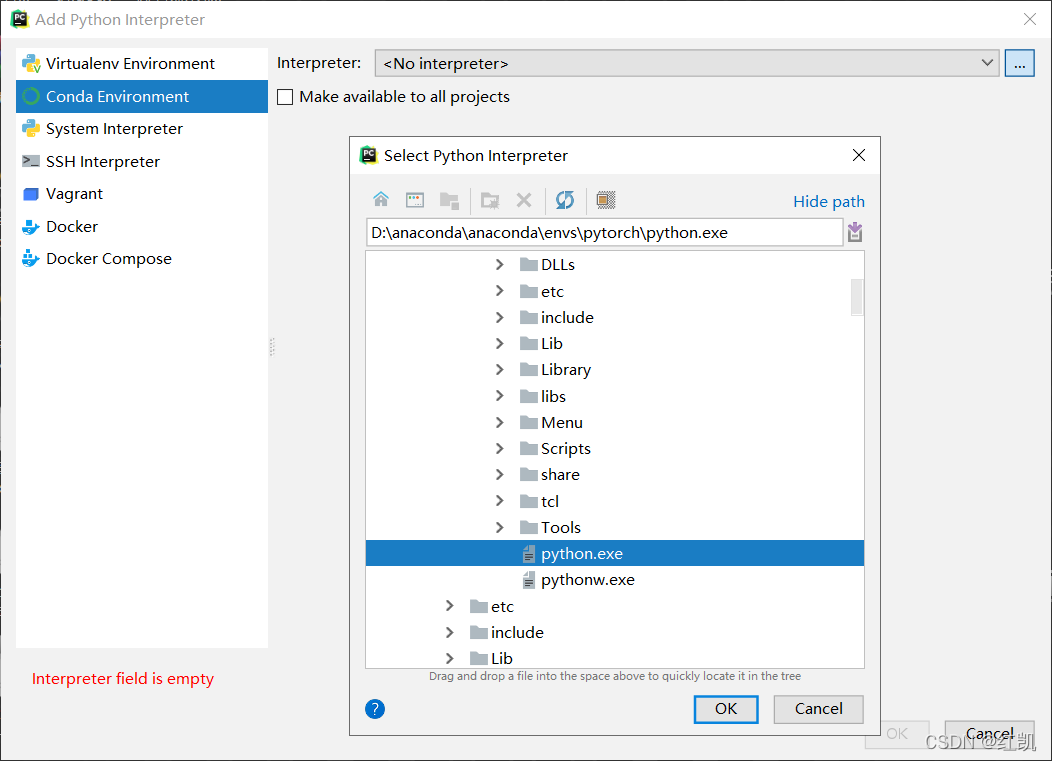
创建完项目后打开python console
导入import并检测是否可以调用GPU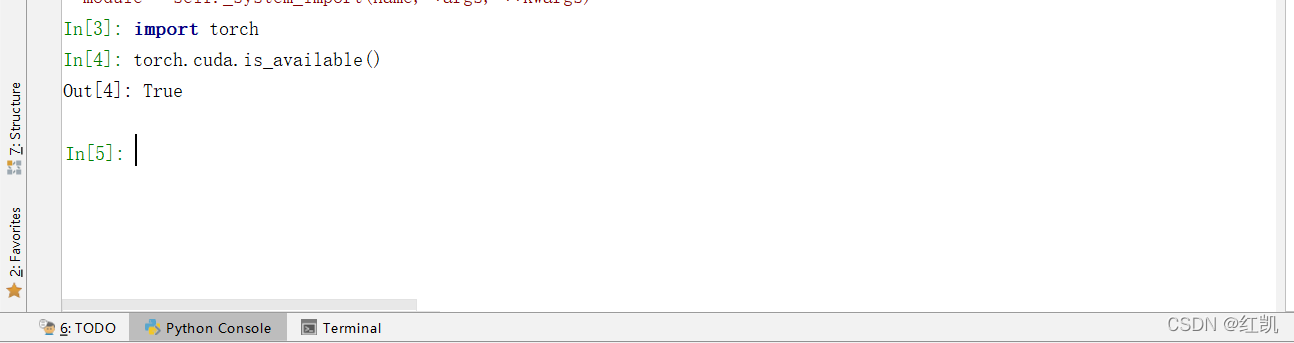
anaconda安装jupyter
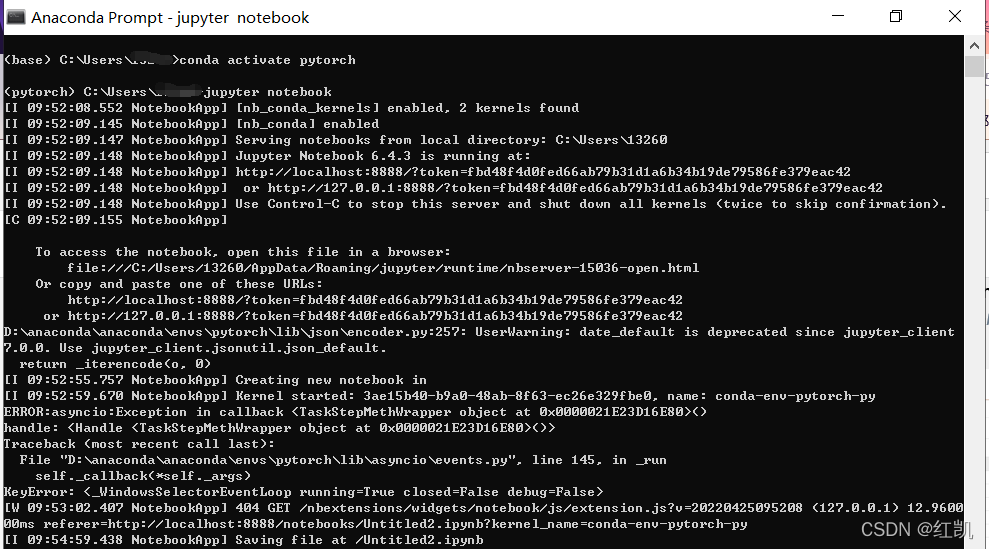
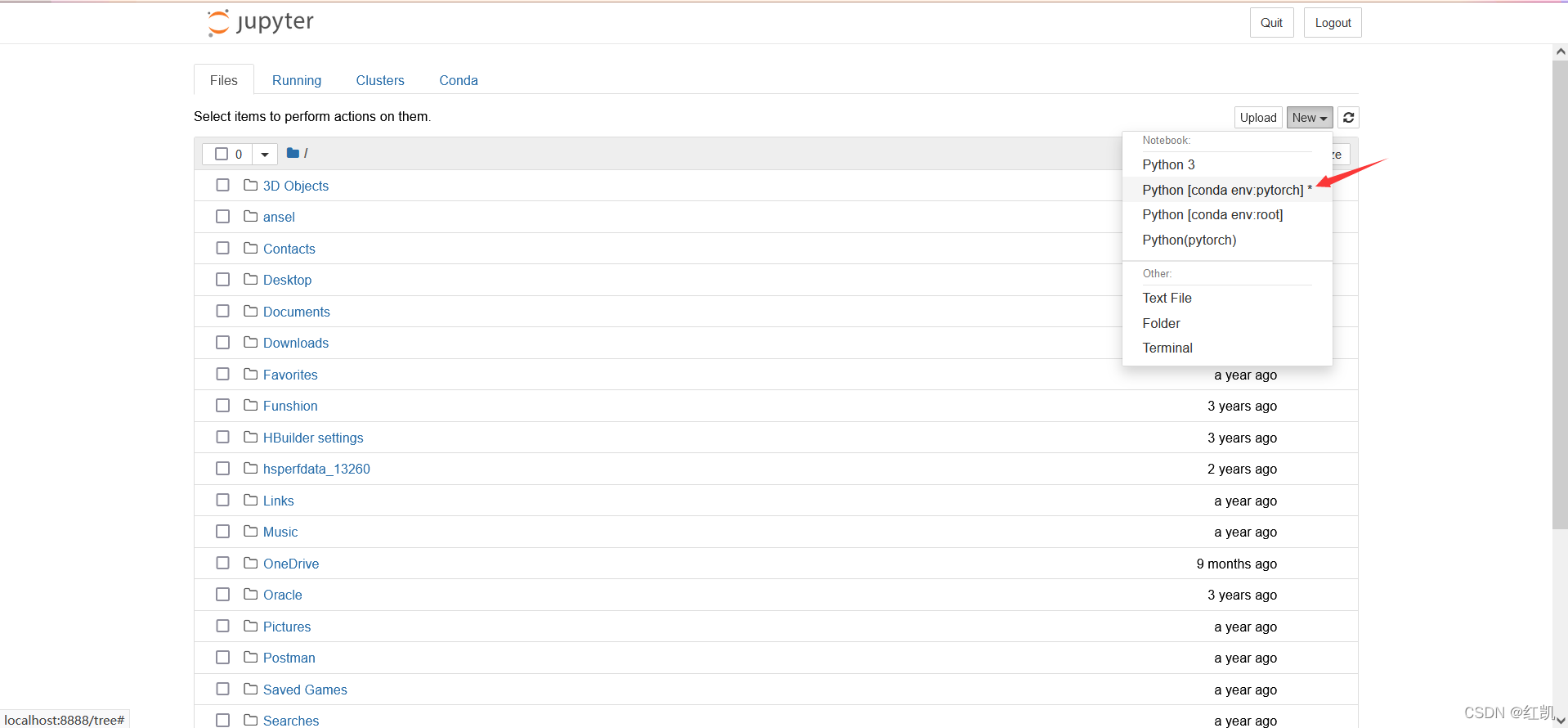
在anaconda prompt中进入pytorch虚拟环境下载nb_conda,然后输入jupyter notebook进入网页jupyter,点击new找到自己创建的虚拟环境,点击进入后导入torch测试torch.cuda.is_available()是否为true
#创建名为pytorch的虚拟环境
conda create -n pytorch python=3.6
#进入该环境
conda activate pytorch
#安装nb_conda
conda install nb_conda
#进入jupyter notebook
jupyter notebook
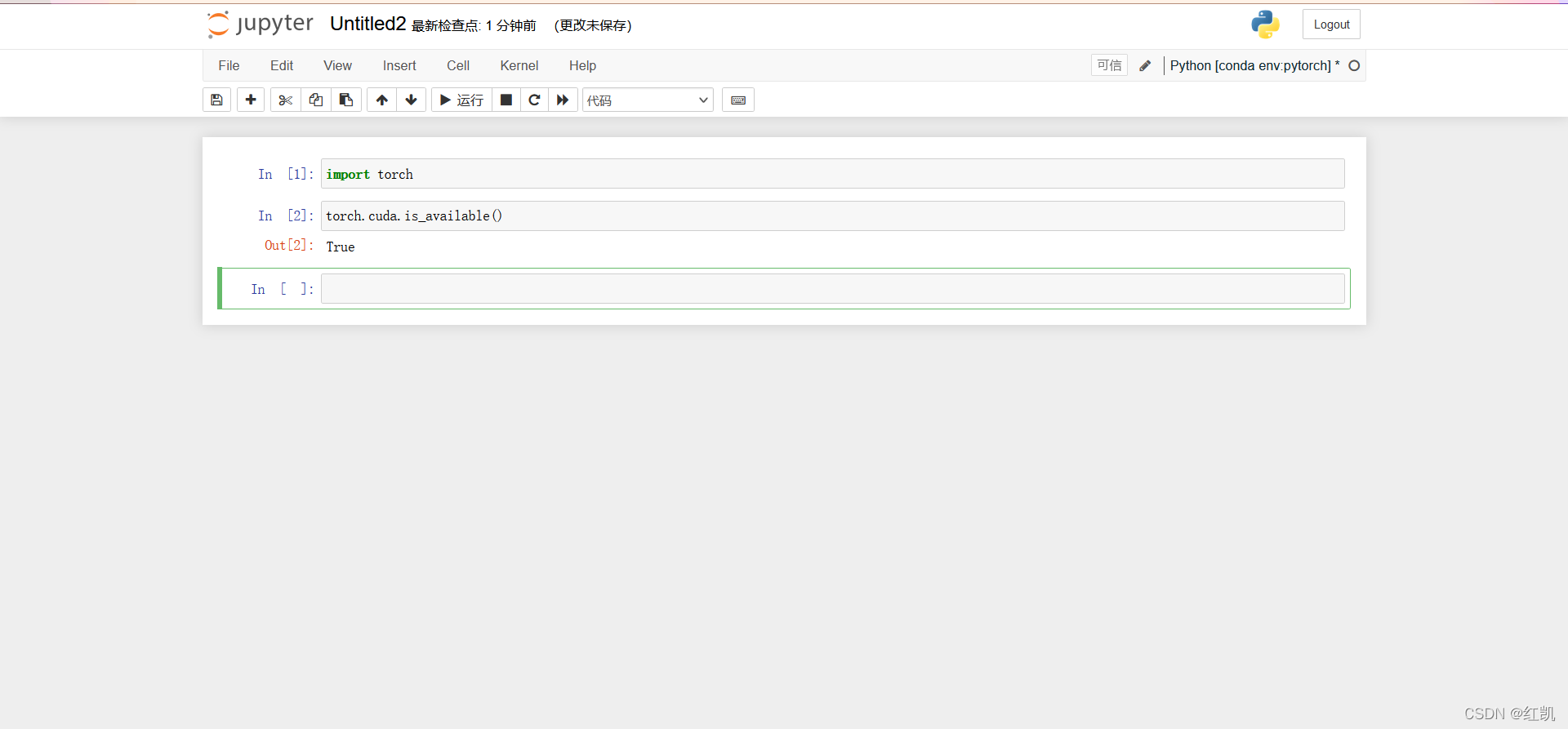
安装过程中可能会出现一些小问题
一、卡在solving environment
方法一:安装命令换成:conda install nb_conda_kernels
方法二:pip install notebook
方法三:conda换源,打开C:\Users\XXX.condarc
修改下载路径:
ssl_verify: true
show_channel_urls: true

channels:
  - http://mirrors.tuna.tsinghua.edu.cn/anaconda/pkgs/main/win-64/
  - http://mirrors.tuna.tsinghua.edu.cn/anaconda/pkgs/main/win-64/
  - defaults
二、进入jupyter notebook后,new中没有自己新建的虚拟环境
在anaconda prompt中输入以下代码,向jupyter中添加对应的路径
python -m ipykernel install --user --name 环境名称 --display-name "Python (环境名称)"
三、在jupyter notebook中import torch报错
可能是你在new中进入的虚拟环境不是你在anaconda中创建的pytorch环境,一、换new中别的虚拟环境试试,二、重新conda install nb_conda然后再重新进入jupyter notebook

CSDN联合极客时间,共同打造面向开发者的精品内容学习社区,助力成长!
更多推荐


 1
1 0
0- 0


 已为社区贡献1条内容

所有评论(0)